ritheachengkh
Side Quest 3 Key 🔑

https://tryhackme.com/room/encoding-decoding-aoc2025-s1a4z7x0c3
https://tryhackme.com/adventofcyber25/sidequest
Clue:
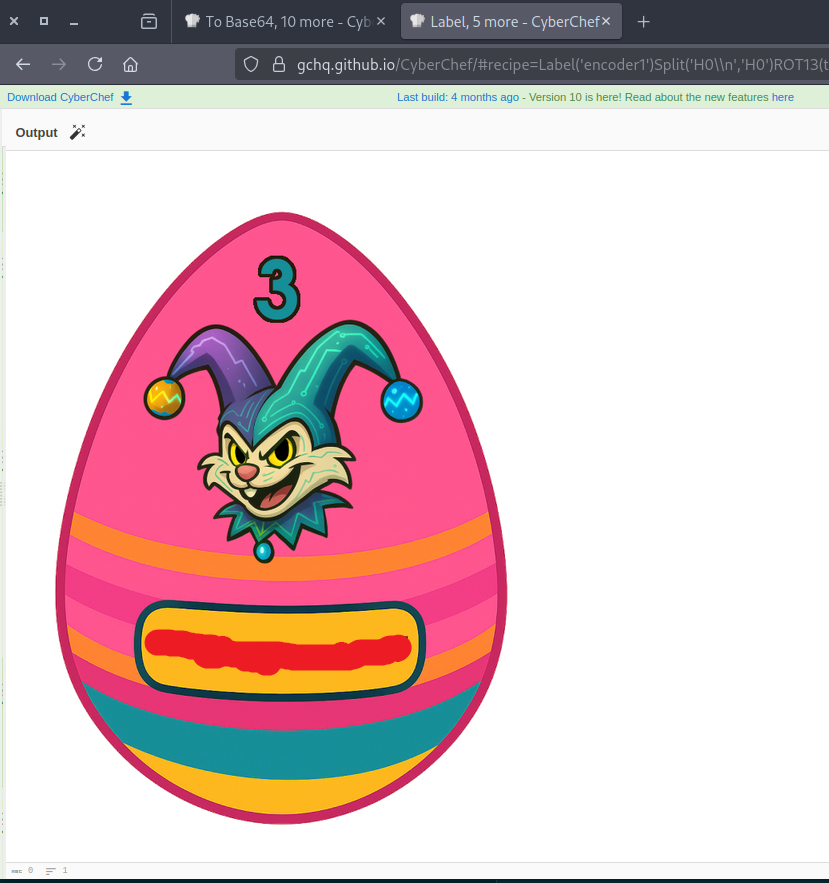
Looking for the key to Side Quest 3? Hopper has left us this cyberchef link as a lead. See if you can recover the key and access the corresponding challenge in our Side Quest Hub!
https://gchq.github.io/CyberChef/#recipe=To_Base64('A-Za-z0-9%2B/%3D')Label('encoder1')ROT13(true,true,false,7)Split('H0','H0%5C%5Cn')Jump('encoder1',8)Fork('%5C%5Cn','%5C%5Cn',false)Zlib_Deflate('Dynamic%20Huffman%20Coding')XOR(%7B'option':'UTF8','string':'h0pp3r'%7D,'Standard',false)To_Base32('A-Z2-7%3D')Merge(true)Generate_Image('Greyscale',1,512)&input=SG9wcGVyIG1hbmFnZWQgdG8gdXNlIEN5YmVyQ2hlZiB0byBzY3JhbWJsZSB0aGUgZWFzdGVyIGVnZyBrZXkgaW1hZ2UuIEhlIHVzZWQgdGhpcyB2ZXJ5IHJlY2lwZSB0byBkbyBpdC4gVGhlIHNjcmFtYmxlZCB2ZXJzaW9uIG9mIHRoZSBlZ2cgY2FuIGJlIGRvd25sb2FkZWQgZnJvbTogCgpodHRwczovL3RyeWhhY2ttZS1pbWFnZXMuczMuYW1hem9uYXdzLmNvbS91c2VyLXVwbG9hZHMvNWVkNTk2MWM2Mjc2ZGY1Njg4OTFjM2VhL3Jvb20tY29udGVudC81ZWQ1OTYxYzYyNzZkZjU2ODg5MWMzZWEtMTc2NTk1NTA3NTkyMC5wbmcKClJldmVyc2UgdGhlIGFsZ29yaXRobSB0byBnZXQgaXQgYmFjayE
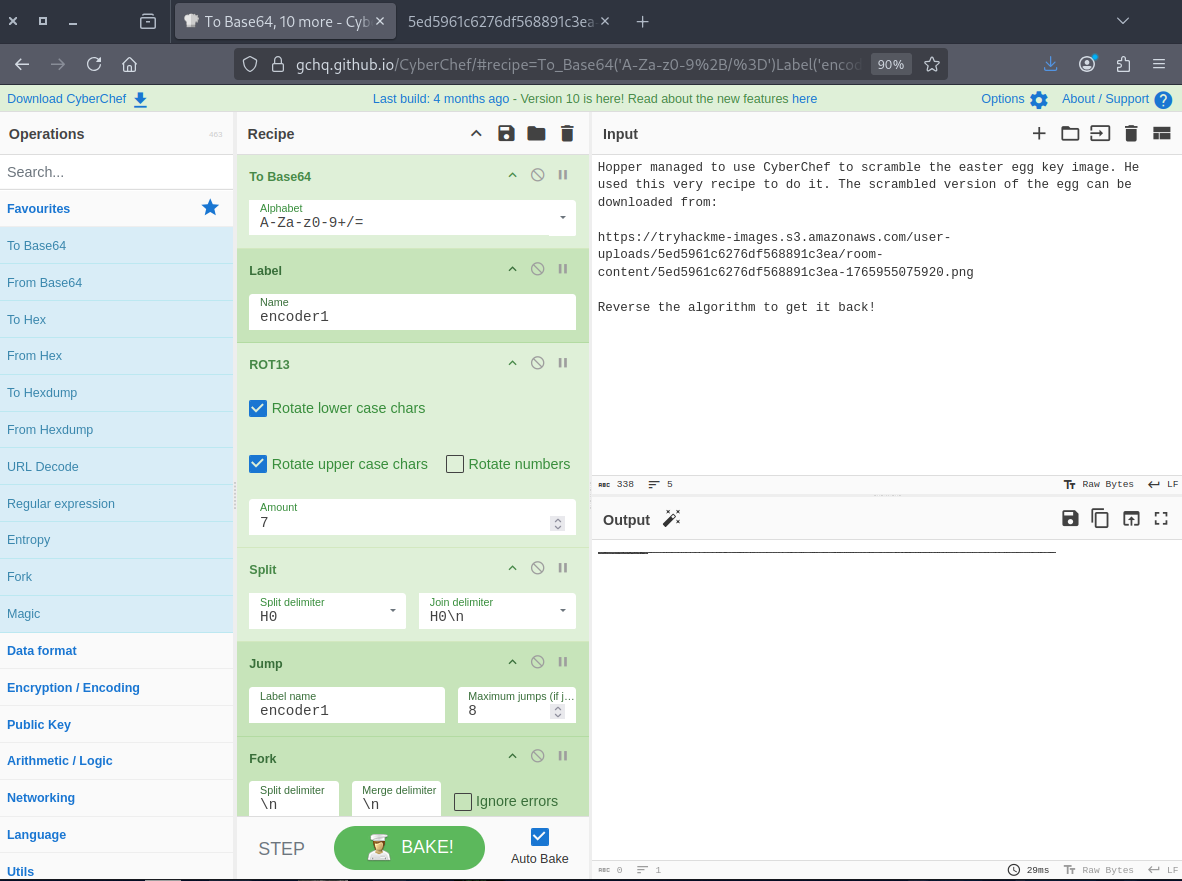
Follow the link in the note. It leads to a grayscale image with a width of 512 pixels.
https://tryhackme-images.s3.amazonaws.com/user-uploads/5ed5961c6276df568891c3ea/room-content/5ed5961c6276df568891c3ea-1765955075920.png

The next step is to test the recipe using a random image, which also produces a similar image.
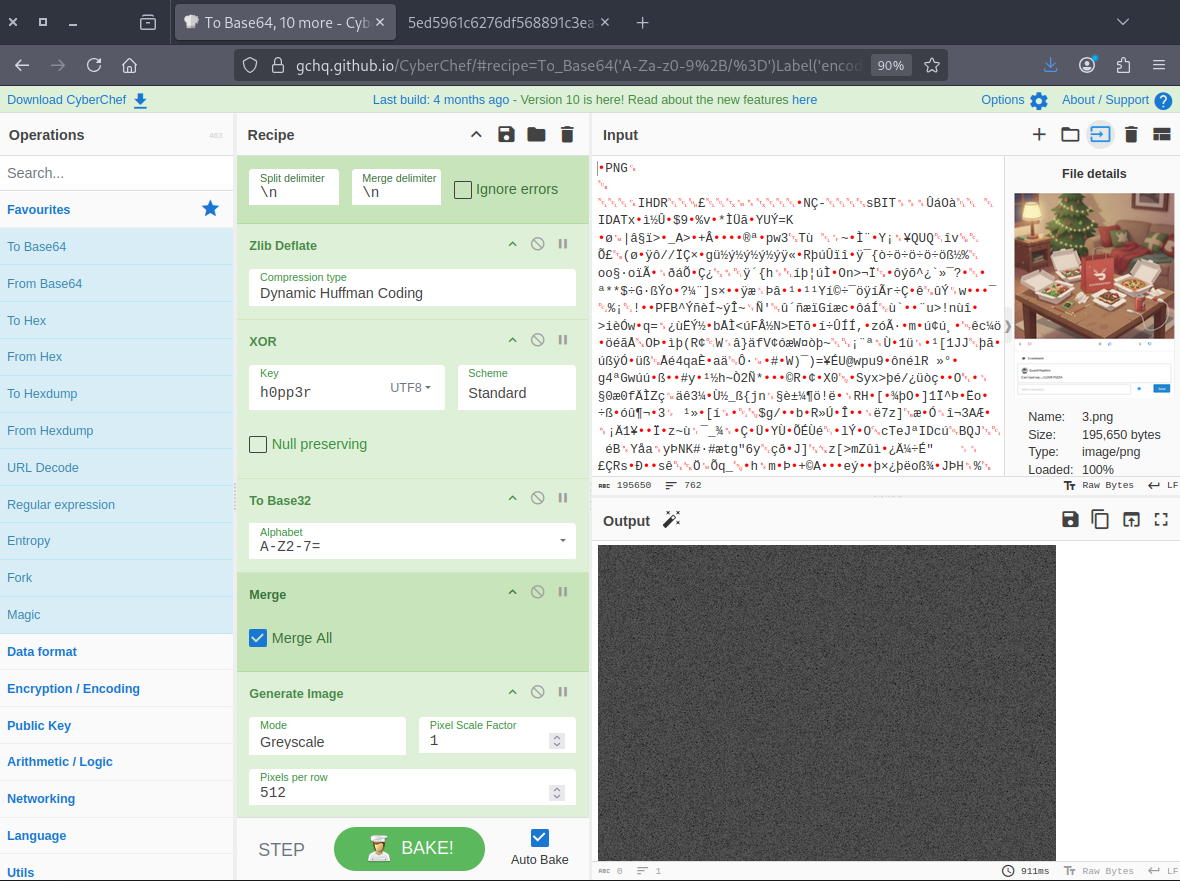
Part 1: from Greyscale Image to Base32
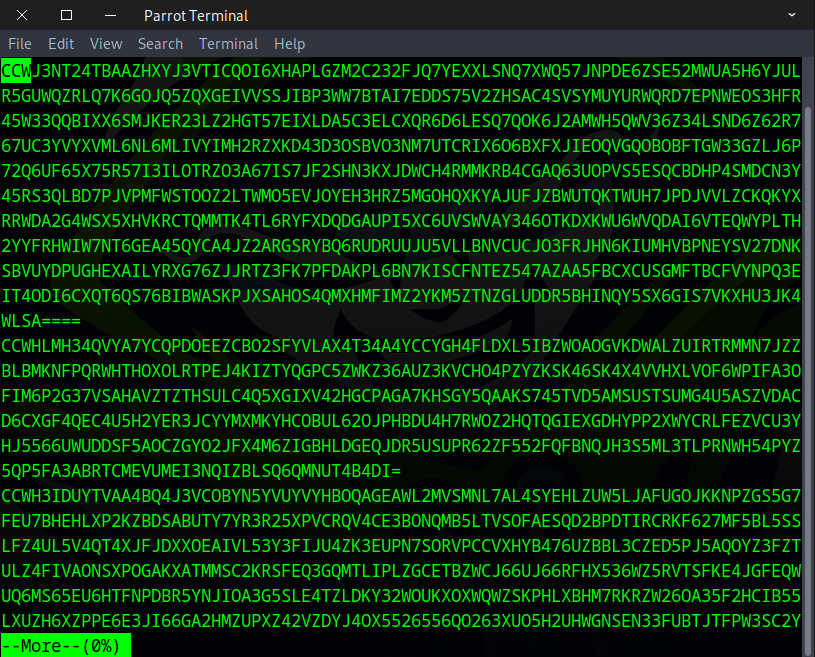
Disabling Generate Image will display Base32 data with a CCW pattern until a newline, after which it will restart with CCW, no matter what image you upload.
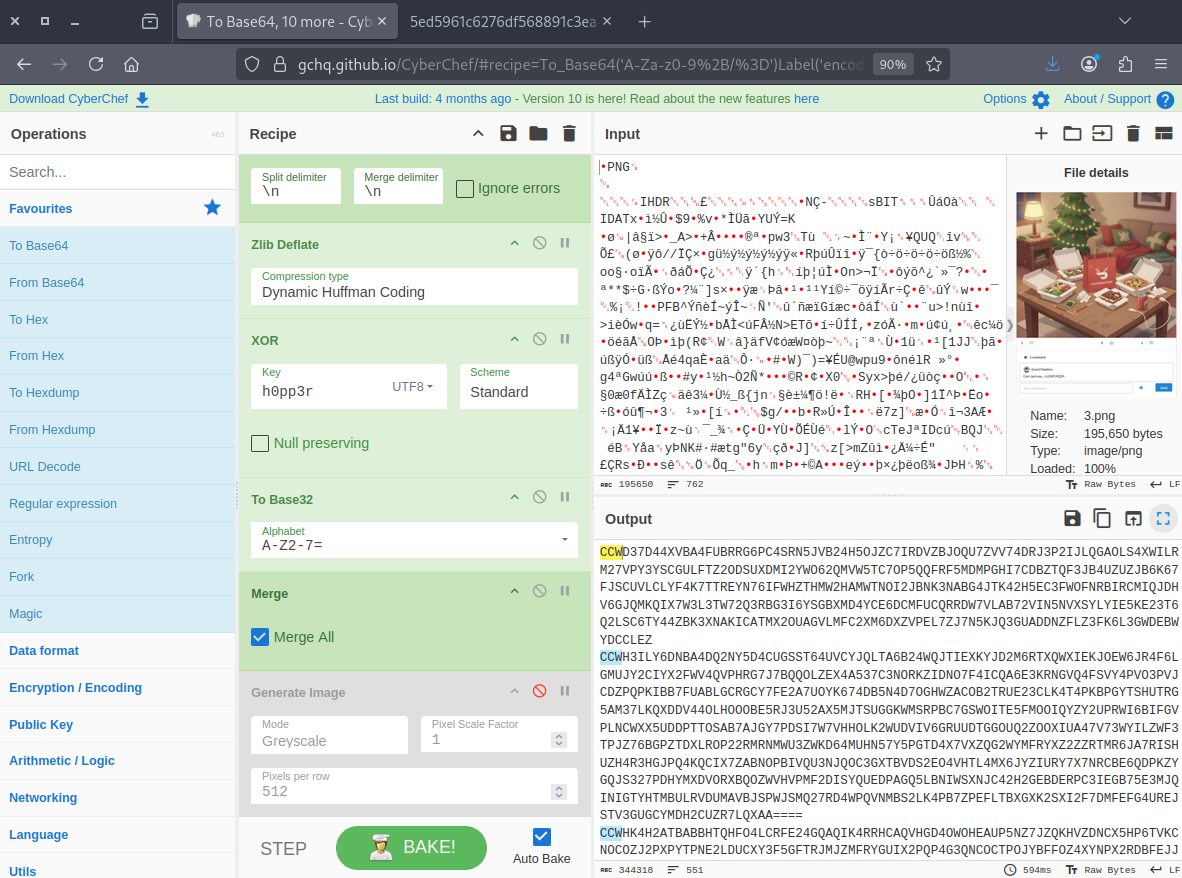
I tried reversing the original image using CyberChef but encountered an issue, getting GAY instead of CCW. This is likely due to the default pixel scale factor being set to 8, whereas it should be 1, with the image having a width of 512 pixels.
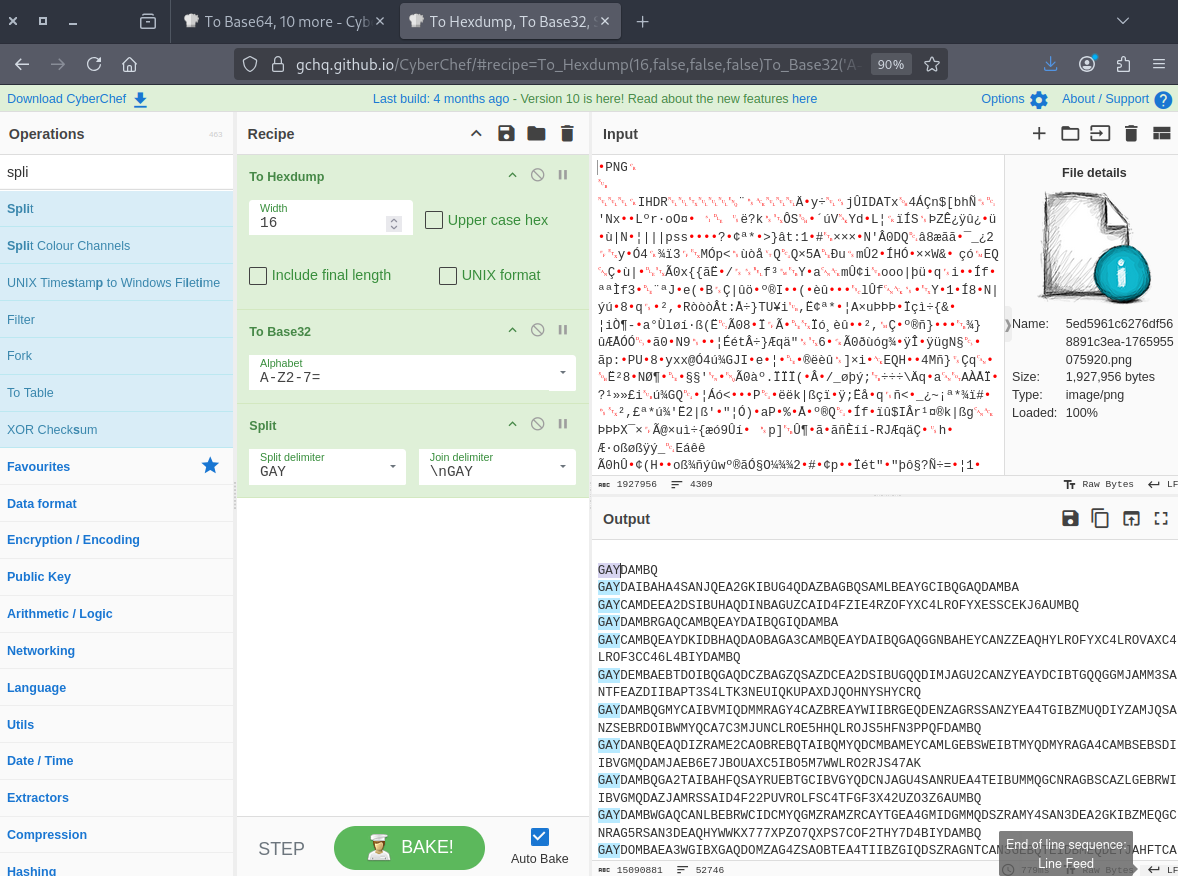
I asked ChatGPT to create a Python script that would perform the operation.
import sys
from PIL import Image

EXPECTED_WIDTH = 512

def grayscale_to_base32_text(image_path):
    # STEP 1: Load grayscale image
    img = Image.open(image_path).convert("L")
    width, height = img.size

    if width != EXPECTED_WIDTH:
        raise ValueError(f"Image width must be {EXPECTED_WIDTH}px, got {width}px")

    # STEP 2: Extract pixel data
    pixel_data = list(img.getdata())

    # Remove padding zeros that were added during encoding
    pixel_data = [p for p in pixel_data if p != 0]

    # STEP 3: Convert pixel values back to Base32 bytes
    base32_bytes = bytes(pixel_data)

    # Save Base32 data to text file
    output_path = "base32.txt"
    with open(output_path, "wb") as f:
        f.write(base32_bytes)

    print("Process complete:")
    print(f"- Image size: {width}x{height}")
    print(f"- Base32 data length: {len(base32_bytes)} bytes")
    print(f"- Saved as: {output_path}")

if __name__ == "__main__":
    if len(sys.argv) != 2:
        print("Usage: python3 script.py <grayscaleimage.png>")
        sys.exit(1)

    grayscale_to_base32_text(sys.argv[1])
We ran the script, and it gave us the output in a file called base32.txt.
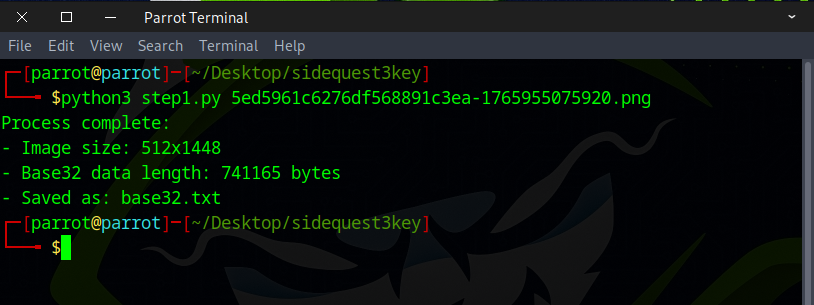
The data shows the CCW pattern, confirming that we’re heading in the right direction.
Part 2: XOR, Zlib Inflate
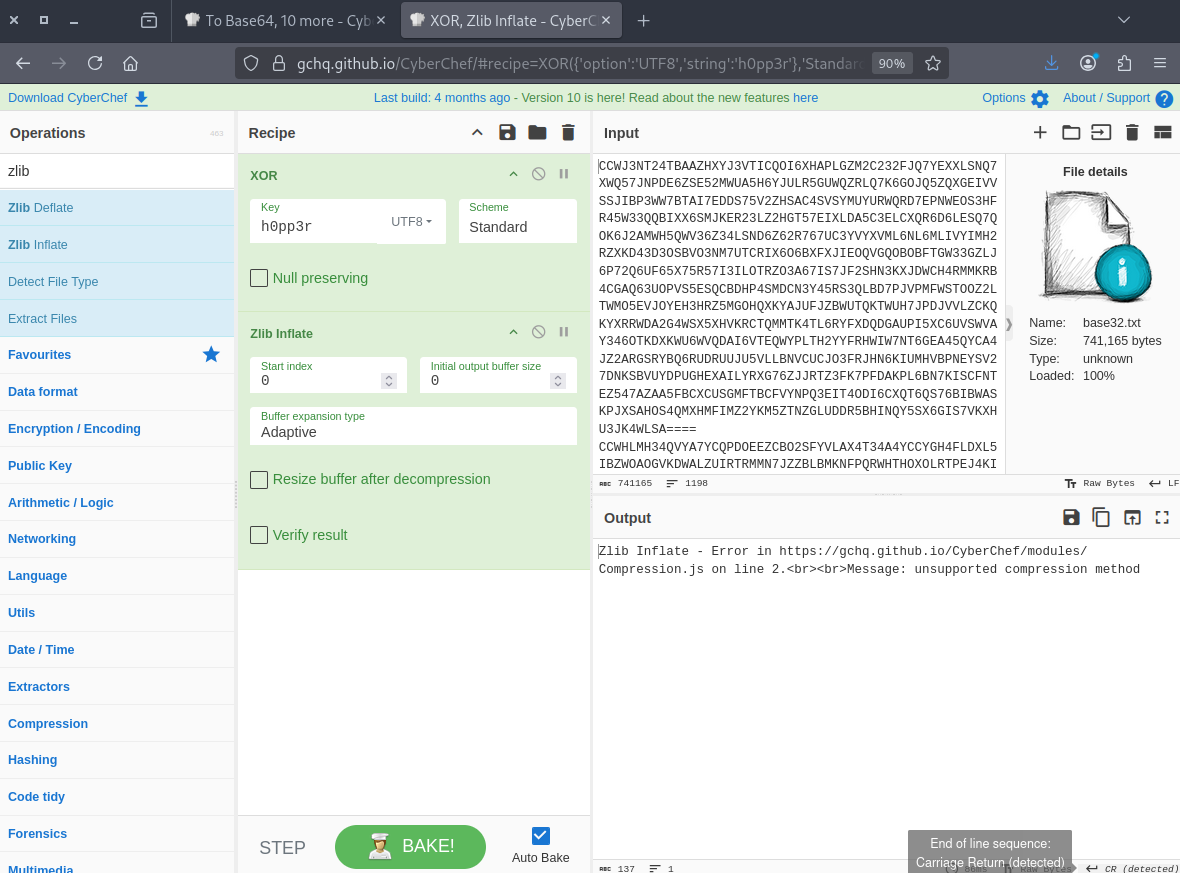
We went back to the sample image, disabled up to the zlib Deflate step, and saw base64 data with a newline pattern.
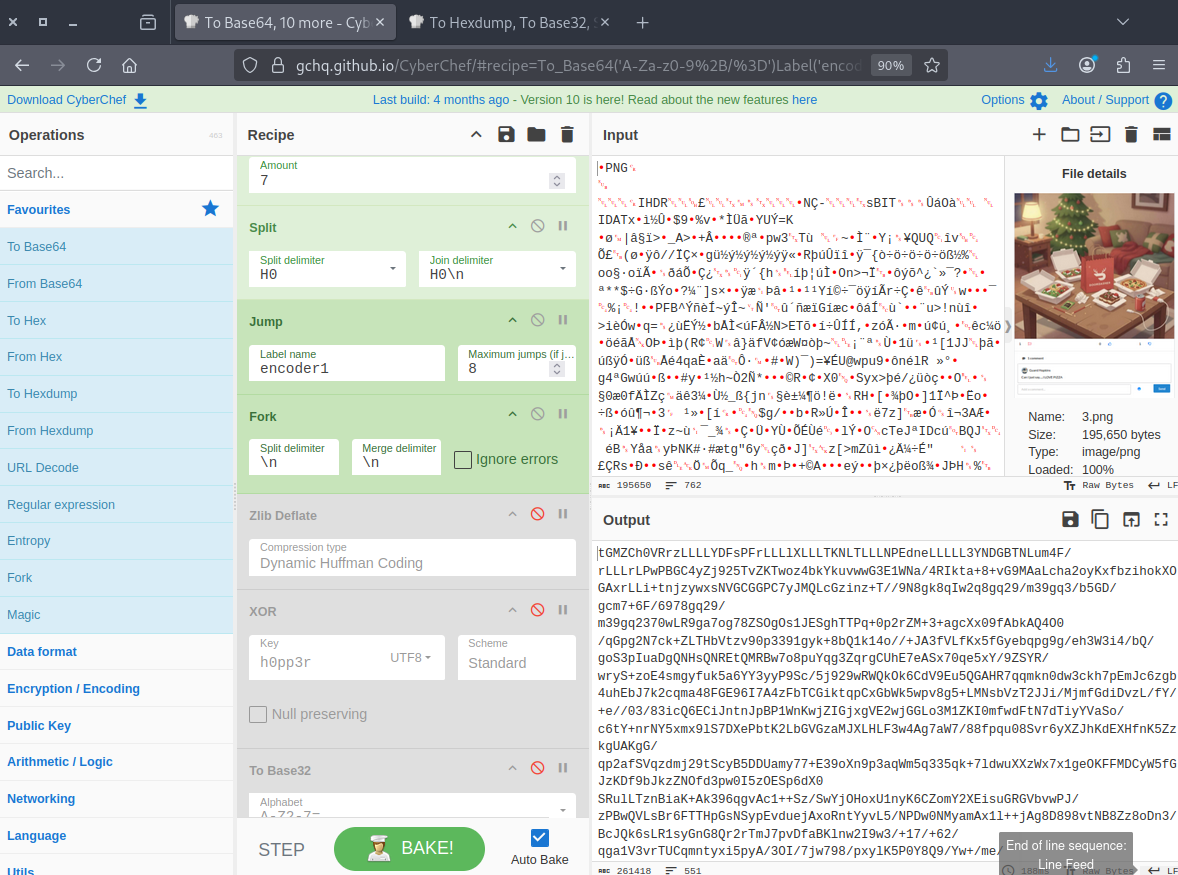
Once again, I tried to reverse it in CyberChef, but it failed. The reason is that the process involves zlib deflate followed by XORing the base64 data chunk by chunk, while the reverse process in CyberChef handles everything at once.
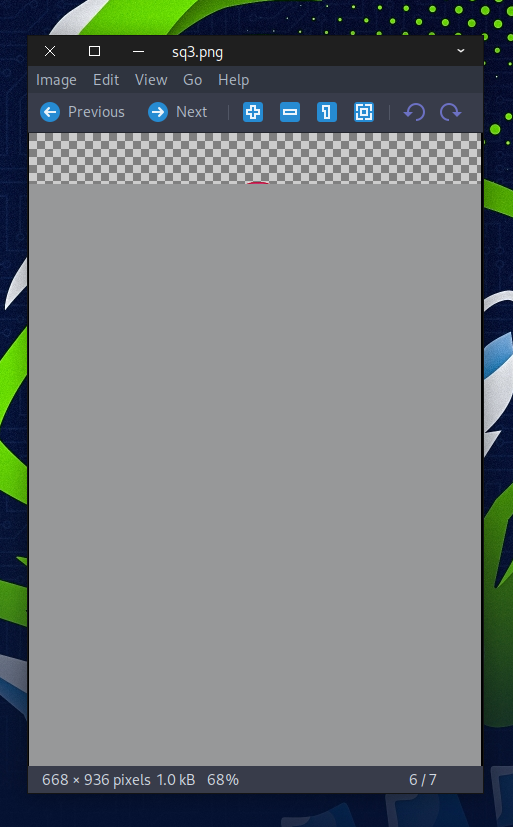
I asked ChatGPT a bunch of times to write a different Python script, but it kept failing. Finally, there’s a little bit of hope. The image has the same size as the other side quest images, and there’s a bit of pink at the top, like the top of an egg, but a lot of data is still missing.
After many hours of manually debugging the code, I finally understood the reason behind the issue.
#!/usr/bin/env python3

import base64
import sys
import zlib

def xor_bytes(data: bytes, key: bytes) -> bytes:
    """XOR each byte of data with the key, repeating the key as needed."""
    key_len = len(key)
    return bytes([b ^ key[i % key_len] for i, b in enumerate(data)])

def pad_base32_line(line: str) -> str:
    """Pad a Base32 line to a multiple of 8 characters with '='."""
    line = line.strip()
    if not line:
        return line
    remainder = len(line) % 8
    if remainder != 0:
        line += '=' * (8 - remainder)
    return line


with open("base64.txt", "wb") as f:
    f.write(b'\x00')

def main():
    if len(sys.argv) != 2:
        print("Usage: python3 convert_base32.py base32.txt")
        sys.exit(1)

    input_file = sys.argv[1]

    # Read Base32 data line by line
    with open(input_file, "r") as f:
        lines = f.readlines()

    decoded_bytes = b''

    # Decode each line separately, preserving spaces/newlines
    for line in lines:
        line = line.rstrip('\n')
        if not line.strip():
            continue  # skip empty lines
        padded_line = pad_base32_line(line)
        try:
            decoded_line = base64.b32decode(padded_line, casefold=True)
        except Exception as e:
            print(f"Base32 decode failed on line: {line}")
            print("Error:", e)
            sys.exit(1)
        decoded_bytes = decoded_line

        # XOR with key
        key = b"h0pp3r"
        xored_bytes = xor_bytes(decoded_bytes, key)

        # zlib inflate
        try:
            inflated_bytes = zlib.decompress(xored_bytes)
            #print(inflated_bytes)
            with open("base64.txt", "ab") as f:
                f.write(inflated_bytes)

        except Exception as e:
            print("zlib decompression failed:", e)
            sys.exit(1)

    print("Success! Saved decompressed output to 'base64.txt'")


if __name__ == "__main__":
    main()
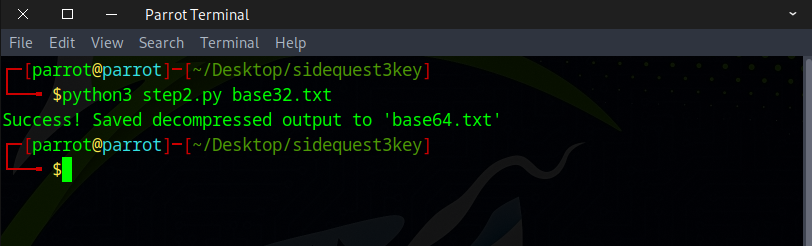
We ran the script, and it gave us a base64.txt file.
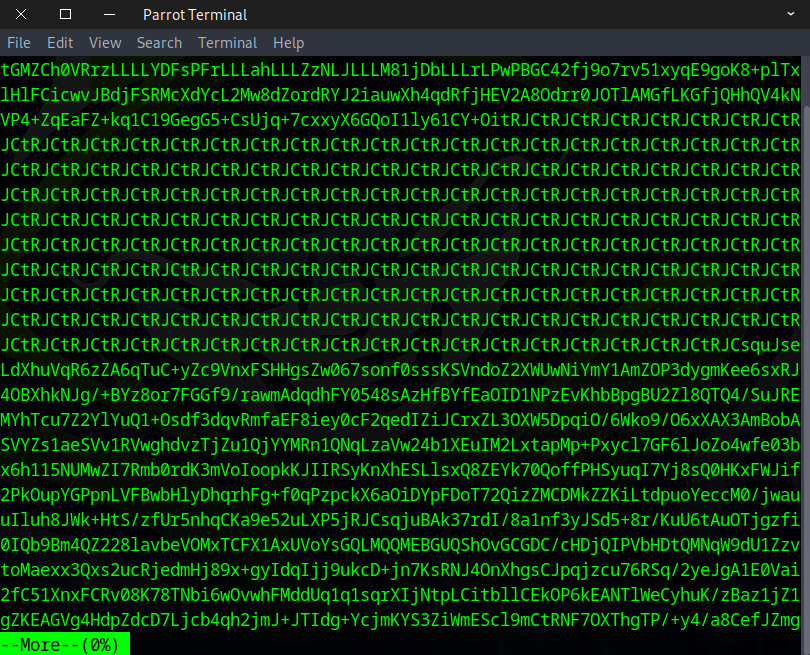
When we checked the file, the data looked pretty similar to the sample image, so that’s a good sign.
Part 3: Jump, Split, ROT13, Base64
This step is way easier than the last two and is pretty straightforward. Just use the recipe below.
### Recipe
https://gchq.github.io/CyberChef/#recipe=Label('encoder1')Split('H0%5C%5Cn','H0')ROT13(true,true,false,-7)Jump('encoder1',8)From_Base64('A-Za-z0-9%2B/%3D',true,false)Render_Image('Raw')&oeol=CR
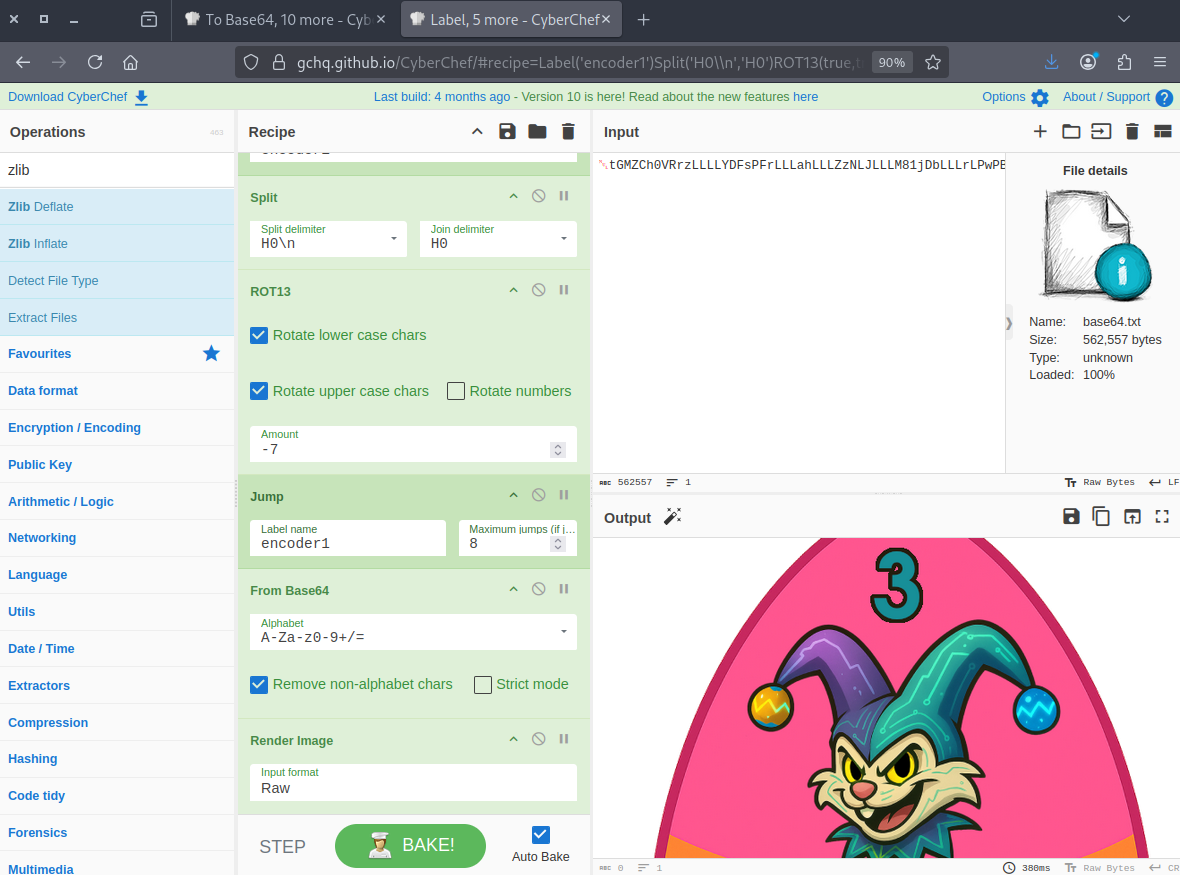
You can maximise it, download it, or just scroll to see the key.